



Windows Movie Maker 11.0.0.8 Multilingual Download – Create and Edit Videos Easily
Windows Movie Maker is a simple video editing application designed to help users create, edit, and share videos. It became popular because of its beginner-friendly interface and straightforward editing tools. Users could combine video clips, photographs, music, transitions, and text to produce attractive video projects without needing professional editing experience.
If you are searching for Windows Movie Maker Download, this guide covers its features, editing capabilities, installation information, system requirements, advantages, and alternatives.
Windows Movie Maker was especially useful for beginners, students, home users, and anyone who wanted to create simple videos for personal projects. Although Microsoft discontinued the original application, it remains well known among users who prefer traditional and easy-to-use video editing software.
What Is Windows Movie Maker?
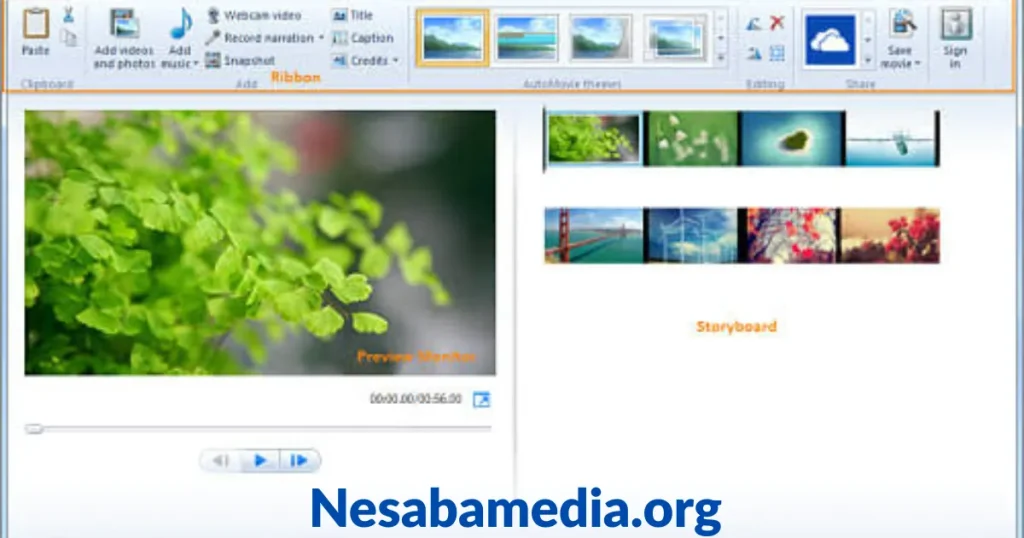
Windows Movie Maker is a video editing program originally developed by Microsoft. It was included in some older versions of Windows and was also distributed as part of Windows Essentials.
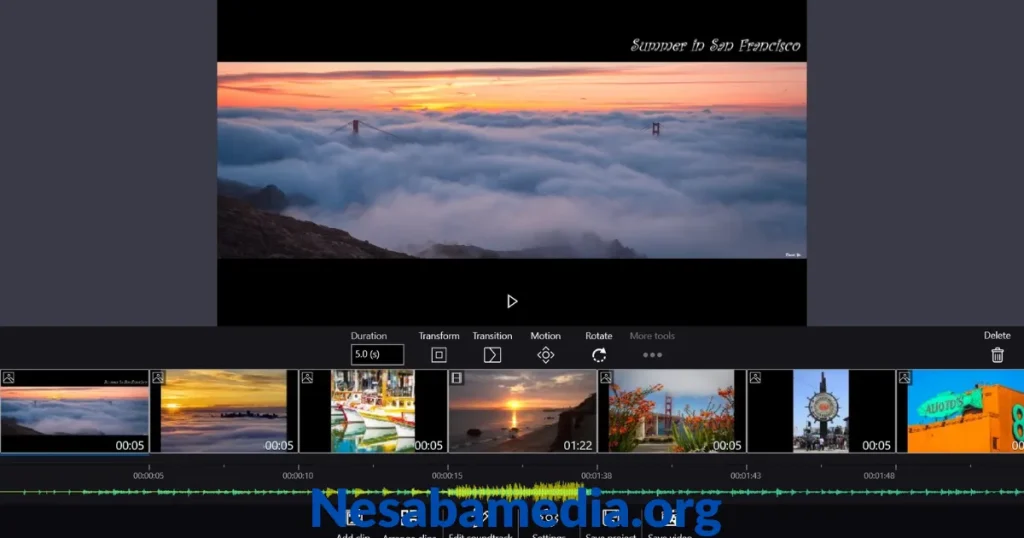
The application provides basic editing tools for organizing video clips, trimming unwanted sections, adding transitions, inserting titles, and including background music. Its simple timeline-based workflow makes it easier to arrange media files and create complete video presentations.
Users can create family videos, slideshows, educational presentations, travel videos, and other basic multimedia projects.
Key Features of Windows Movie Maker
1. Simple Video Editing Interface
Windows Movie Maker offers an easy-to-understand interface that allows beginners to start editing videos without complicated settings. Its basic layout makes common editing tasks accessible.
2. Video Trimming and Splitting
Users can remove unwanted portions of video clips by trimming or splitting footage. This helps create shorter and more organized videos.
3. Transitions and Visual Effects
The application includes transition effects that can be placed between video clips and photographs. These effects help create smoother changes between different scenes.
4. Add Titles and Captions
Windows Movie Maker allows users to insert titles, captions, and credits into their projects. Text can be used to introduce a video, explain a scene, or display closing information.
5. Background Music Support
Users can add music and audio files to their video projects. Background music helps make slideshows, presentations, and personal videos more engaging.
6. Photo Slideshow Creation
The software can combine photographs into a slideshow. Users can arrange pictures, add transitions, include music, and create a video from their favorite images.
7. Video Effects
Windows Movie Maker provides basic visual effects for changing the appearance of video clips. Depending on the version, users can apply effects such as brightness adjustments, color treatments, and other simple enhancements.
8. Audio Editing
The application provides basic audio controls that help users adjust music and sound within their projects. Users can organize background audio and combine it with video footage.
9. Video Narration
Compatible versions support narration recording, allowing users to add spoken explanations or commentary to their videos.
10. Video Exporting
After completing a project, users can save or export their videos in supported formats and quality settings. Export options depend on the installed version.
Benefits of Using Windows Movie Maker
Windows Movie Maker became popular because it made basic video editing accessible to everyday computer users.
- Beginner-Friendly: Its simple interface is suitable for users with limited editing experience.
- Easy Video Creation: Combine photos, clips, music, and transitions in one project.
- Basic Editing Tools: Trim, split, and arrange video clips.
- Slideshow Creation: Turn personal photographs into video presentations.
- Text and Titles: Add captions, introductions, and closing credits.
- Music Integration: Include background music and narration.
- Simple Workflow: Create basic videos without learning advanced editing techniques.
What Can You Create with Windows Movie Maker?
Windows Movie Maker can be used for several everyday video editing projects.
Family and Personal Videos
Combine family photographs and recorded clips into memorable videos. Add music, captions, and transitions to make personal presentations.
Photo Slideshows
Create slideshows from holiday pictures, birthday photographs, wedding images, and other collections.
Educational Presentations
Students and teachers can use the application to create simple educational videos with text, pictures, and narration.
Travel Videos
Organize travel footage into a complete video with background music and scene transitions.
Social Media Videos
Create basic video content for sharing online. However, users should remember that the original application does not provide modern editing features specifically designed for current social media formats.
How to Use Windows Movie Maker
Getting started with Windows Movie Maker is straightforward.
- Open the Application: Launch Windows Movie Maker on your compatible Windows computer.
- Import Media: Add video clips and photographs from your computer.
- Arrange Clips: Place your media files in the desired sequence.
- Trim Footage: Remove unnecessary sections from video clips.
- Add Transitions: Choose transition effects between scenes.
- Insert Text: Add titles, captions, and credits.
- Include Music: Import an audio file for background music.
- Preview the Project: Play the video to check the editing and timing.
- Save the Video: Export the completed project using an available output setting.
Windows Movie Maker Download and Installation
The original Windows Movie Maker is discontinued, and Microsoft no longer provides it as a currently supported Windows application. Users looking for a legitimate installation should be careful when choosing download sources.
Follow these general recommendations:
- Check whether Windows Movie Maker is already installed on your older Windows computer.
- If you have a legitimate original installer or installation media, verify that it comes from a trusted source.
- Check whether the installer is compatible with your Windows version.
- Scan downloaded installation files with reputable security software.
- Avoid modified installers, suspicious download managers, and unofficial activation tools.
- Install only software you are authorized to use.
Important: Be cautious of websites advertising unofficial Windows Movie Maker installers as the latest official Microsoft release. Microsoft discontinued the product, and unofficial copies may contain unwanted programs or security risks.
Windows Movie Maker System Requirements
The original system requirements depend on the version being used. Older releases were designed for earlier Windows operating systems, so compatibility with modern Windows versions is not guaranteed.
| Component | Requirement / Recommendation |
|---|---|
| Operating System | Originally designed for older Windows versions |
| Processor | Compatible Intel or AMD processor |
| RAM | 1 GB or more recommended for older versions |
| Storage | Free disk space for installation and media files |
| Graphics | Compatible graphics hardware |
| Display | Standard Windows-compatible display |
| Audio | Compatible sound device |
| Internet | May be needed for online installation or related services |
These are general considerations, not guaranteed official requirements for every release. Always check the compatibility of the specific version you intend to install.
Pros and Cons of Windows Movie Maker
Pros
- Easy-to-use interface for beginners.
- Simple video trimming and splitting tools.
- Supports photo slideshow creation.
- Includes basic transitions and visual effects.
- Allows titles, captions, and credits.
- Supports background music and narration.
- Useful for simple personal video projects.
Cons
- Officially discontinued by Microsoft.
- No ongoing official updates or support.
- Compatibility with modern Windows versions may vary.
- Limited advanced editing features.
- Not ideal for professional video production.
- Unofficial installers may pose security risks.
Best Alternatives to Windows Movie Maker
If Windows Movie Maker is unavailable or incompatible with your computer, you can explore these alternatives.
1. Clipchamp
Clipchamp is a modern video editor with tools for trimming clips, adding text, applying transitions, and creating videos. It is suitable for beginners who want a straightforward editing experience.
2. OpenShot
OpenShot is an open-source video editor that provides timeline editing, transitions, titles, and basic video effects. It is useful for users who want a free desktop editing application.
3. Shotcut
Shotcut is a free, open-source video editor with a range of editing tools, audio controls, filters, and format support.
4. VSDC Free Video Editor
VSDC offers video editing tools, visual effects, transitions, and other features for creating more advanced projects.
5. Kdenlive
Kdenlive is an open-source video editor with multiple tracks, effects, transitions, and detailed editing controls.
Is Windows Movie Maker Still Worth Using?
Windows Movie Maker can still be useful for people who have access to a legitimate compatible version and only need basic video editing tools. Its straightforward interface makes it suitable for simple slideshows, family videos, and personal projects.
However, its discontinued status means it is not an ideal choice for users who need regular updates, modern compatibility, or ongoing technical support. Modern alternatives such as Clipchamp, OpenShot, and Shotcut offer more practical options for current Windows computers.
Frequently Asked Questions (FAQs)
1. Is Windows Movie Maker free to download?
Windows Movie Maker was distributed free by Microsoft. However, it has been discontinued, and Microsoft no longer provides an official current download. Be careful with unofficial download websites.
2. Is Windows Movie Maker still available?
The original application is discontinued. Existing installers may still be available through legitimate older installation media or archived sources, but users should verify their authenticity and safety.
3. Does Windows Movie Maker work on Windows 10?
Compatibility can vary depending on the version and system configuration. The original application was designed for older Windows releases, so it is not guaranteed to work properly on Windows 10.
4. Can I use Windows Movie Maker on Windows 11?
There is no currently supported official Windows 11 version of the original application. Users may encounter compatibility issues with older installers.
5. Can Windows Movie Maker edit MP4 videos?
Support depends on the version and installed media components. Some releases can work with MP4 files, while others may require compatible codecs or file conversion.
6. Can I add music to Windows Movie Maker?
Yes. Compatible versions allow users to import audio files and use them as background music in video projects.
7. Can Windows Movie Maker create photo slideshows?
Yes. Users can combine photographs, transitions, titles, and music to create simple video slideshows.
8. Is Windows Movie Maker good for beginners?
Yes. Its simple interface and basic editing tools make it suitable for beginners who want to create straightforward videos.
9. What replaced Windows Movie Maker?
Microsoft discontinued Windows Movie Maker. Clipchamp is a modern Microsoft video editing application, while OpenShot and Shotcut are popular free alternatives.
10. What is the best free alternative to Windows Movie Maker?
OpenShot and Shotcut are popular free desktop alternatives. Clipchamp is another option for users who prefer a modern and beginner-friendly editing experience.
Conclusion
Windows Movie Maker is a well-known video editing application that helped millions of users create simple videos, slideshows, and personal presentations. Its easy interface, basic editing tools, transitions, titles, and music support made it a popular choice for beginners.
Although Windows Movie Maker Download remains a frequently searched keyword, the original application has been discontinued by Microsoft. Users should verify the safety and compatibility of any older installer before using it. For modern Windows systems, Clipchamp, OpenShot, and Shotcut are practical alternatives for everyday video editing.


