


PassFab 4EasyPartition 4.5.0.7 (x64) Multilingual Portable – Disk Partition Management Tool
PassFab 4EasyPartition is a Windows disk management application designed to help users manage storage devices, organize partitions, and perform supported disk operations. It provides a graphical interface for working with hard drives and SSDs, making common storage management tasks more accessible.
If you are searching for PassFab 4EasyPartition Portable, this guide explains the software, its features, potential portable usage, benefits, installation information, system requirements, and alternatives.
Disk management is an important part of maintaining a computer. Whether you want to reorganize storage space, prepare a new drive, or upgrade an existing hard drive to an SSD, partition management software can help simplify the process.
PassFab 4EasyPartition is designed for users who want convenient access to disk and partition management functions without relying entirely on Windows command-line tools.
What Is PassFab 4EasyPartition?
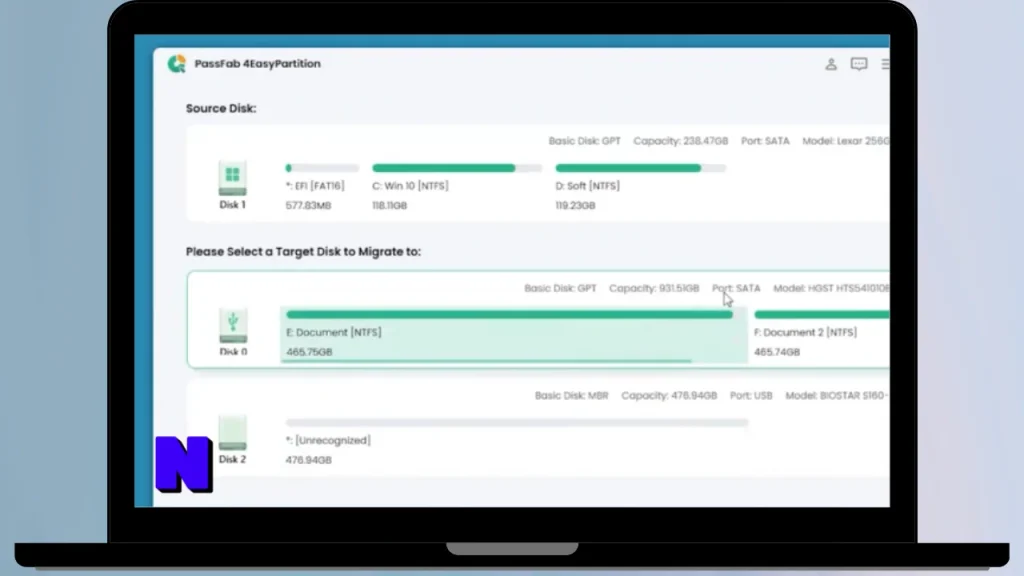
PassFab 4EasyPartition is a disk and partition management utility developed by PassFab. It is designed to help Windows users perform supported storage-related operations through a graphical interface.
Depending on the version and license, its functionality may include partition management, disk cloning, and operating system migration.
The application can be useful for home users, computer technicians, and people who regularly upgrade or reorganize computer storage.
The term portable generally refers to software that can run without a traditional installation. However, users should verify whether the particular PassFab 4EasyPartition package supports portable execution. A standard installer should not automatically be described as a portable edition.
Key Features of PassFab 4EasyPartition
1. Disk Partition Management
PassFab 4EasyPartition provides tools for managing supported disk partitions. Users can work with their storage layout through a graphical interface.
2. Resize Partitions
Partition resizing helps users reorganize available storage space. This can be useful when one volume has limited capacity while another has unused space.
3. Create and Manage Partitions
The application provides disk management capabilities for organizing storage volumes. Users can arrange their drives according to their personal or professional requirements.
4. Disk Cloning
Disk cloning can help transfer information from one storage device to another. This is particularly useful when replacing an existing hard drive with a larger or faster SSD.
5. Operating System Migration
Supported versions may provide operating system migration functionality. This can help users move a Windows installation to another compatible storage device.
6. HDD to SSD Migration
Users upgrading from a traditional hard drive to an SSD can benefit from supported disk cloning or migration functions. Moving the operating system to an SSD can improve system responsiveness.
7. Graphical User Interface
PassFab 4EasyPartition provides a visual environment for managing storage devices. This makes disk-related operations easier to understand than working exclusively with command-line instructions.
8. Storage Organization
The software helps users manage their storage layout and organize available disk space according to their needs.
9. Support for Storage Upgrades
Disk cloning and migration tools can be useful when installing a new storage device or replacing an existing drive.
10. Convenient Disk Management Workflow
By bringing supported storage functions into one application, PassFab 4EasyPartition can reduce the need to switch between multiple disk management utilities.
Feature availability depends on the installed version and license.
Benefits of Using PassFab 4EasyPartition
PassFab 4EasyPartition offers several potential benefits for users who need to manage their computer storage.
- Easy Disk Management: Work with supported storage operations through a graphical interface.
- Partition Organization: Manage disk volumes according to your requirements.
- Disk Cloning: Transfer data between compatible storage devices.
- SSD Upgrades: Support storage migration when replacing an HDD with an SSD.
- System Migration: Move a supported Windows installation to another drive.
- Beginner-Friendly Workflow: Access common disk operations without relying entirely on command-line tools.
- Storage Flexibility: Organize available disk space for different purposes.
What Can You Do with PassFab 4EasyPartition?
The application can be useful for several everyday storage management situations.
Upgrade an HDD to an SSD
Replacing an older hard drive with an SSD is a common computer upgrade. Supported cloning and migration tools can help transfer your existing system and files to the replacement drive.
Organize Disk Partitions
Partition management can help users arrange storage volumes for operating system files, applications, documents, and personal data.
Manage Storage Space
If your current disk layout does not meet your needs, supported partition operations can help reorganize available space.
Migrate Windows to Another Drive
Users installing a replacement storage device may use operating system migration features to transfer their Windows installation.
Clone a Storage Device
Disk cloning can be useful when replacing an existing drive or creating a copy of a storage device.
Important: Always back up your important files before resizing, deleting, cloning, or migrating partitions. Incorrect disk operations can cause permanent data loss.
How to Use PassFab 4EasyPartition
The general workflow for using a partition management application is straightforward.
- Launch the Software: Open PassFab 4EasyPartition on your Windows computer.
- Check Connected Drives: Review the available hard drives and SSDs.
- Select a Storage Device: Choose the disk you want to manage.
- Choose a Function: Select the required supported partition, cloning, or migration operation.
- Review the Configuration: Carefully check the source and destination drives.
- Confirm the Operation: Review all selected settings before applying changes.
- Wait for Completion: Allow the application to complete the selected task.
- Verify Your Storage: Check the resulting disk layout and confirm that important files are accessible.
Some disk operations may require a restart. Follow the instructions displayed by the application.
PassFab 4EasyPartition Portable Download and Installation
If you are looking for PassFab 4EasyPartition Portable, first verify whether an authentic portable package is available for the version you want to use.
Follow these general recommendations:
- Find a trusted distribution source for PassFab 4EasyPartition.
- Check the available version and licensing information.
- Confirm whether the package is an installer or a genuine portable edition.
- Download the appropriate package for your Windows system.
- Scan the downloaded file with reputable security software.
- If it is an installer, run it and follow the setup instructions.
- If an official portable package is provided, extract it according to its documentation.
- Launch the application and review its available features.
Important: Do not assume that a modified or repackaged installer is an official portable edition. Avoid cracked versions, unauthorized activation tools, and suspicious download packages.
Is PassFab 4EasyPartition Portable?
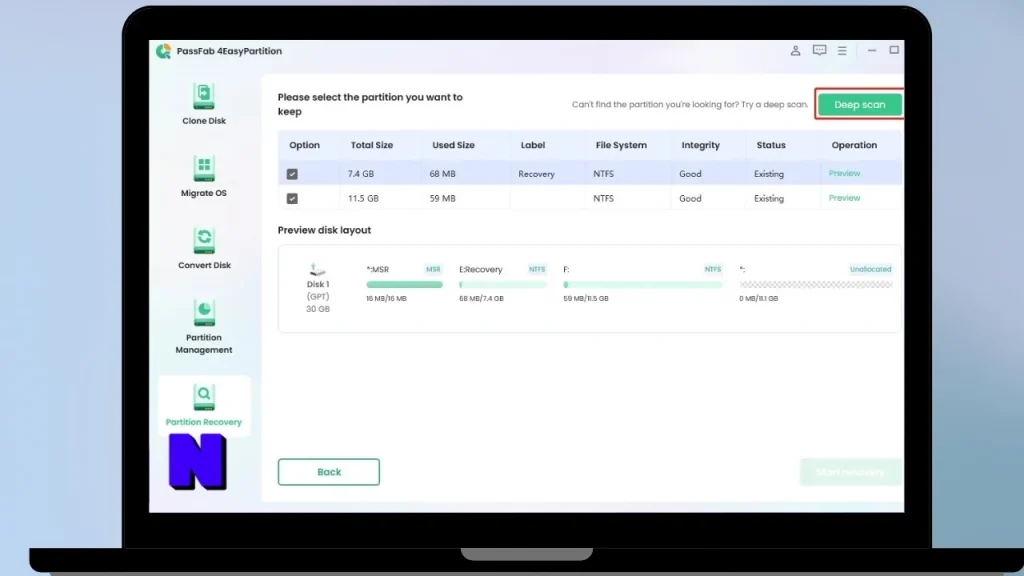
The word portable is often used to describe applications that can run directly from an extracted folder or external storage device without a traditional installation.
However, disk management applications may require administrator privileges and access to low-level Windows storage components. Some operations may also require system services or a restart.
Therefore, even if a package offers portable-style launching, not every feature will necessarily work without additional permissions or system changes.
Check the documentation for the exact release before treating it as a fully portable application.
PassFab 4EasyPartition System Requirements
The exact requirements depend on the software version and supported Windows environment.
| Component | Requirement / Recommendation |
|---|---|
| Operating System | Compatible Windows version |
| Architecture | Check the supported 32-bit or 64-bit edition |
| Processor | Compatible Intel or AMD processor |
| RAM | 4 GB or more recommended |
| Storage | Free space for application files and temporary operations |
| Graphics | Standard Windows-compatible graphics |
| Storage Devices | Supported HDDs and SSDs |
| Permissions | Administrator privileges may be required |
| Internet | May be needed for downloads, registration, or activation |
Check the requirements for your specific release before installation.
Safety Tips Before Managing Disk Partitions
Working with partitions and storage devices requires care. Follow these recommendations before using PassFab 4EasyPartition.
- Back up important files to a separate storage device.
- Check the source and destination drives before cloning.
- Make sure the destination drive has sufficient capacity.
- Avoid interrupting an active disk operation.
- Connect your laptop to a reliable power source.
- Do not delete unfamiliar system or recovery partitions.
- Keep Windows recovery options available.
- Verify that the selected disk is correct before applying changes.
These precautions can help reduce the risk of accidental data loss.
Pros and Cons of PassFab 4EasyPartition
Pros
- Graphical interface for disk management.
- Designed for common partition operations.
- Provides storage cloning-related functionality.
- Useful for supported HDD-to-SSD upgrades.
- Can help with operating system migration.
- Suitable for users who prefer visual disk management tools.
Cons
- Some advanced functions may require a paid license.
- Exact feature availability depends on the version.
- Portable availability should be verified separately.
- Disk operations can result in data loss if performed incorrectly.
- Administrator permissions may be required.
- Not every storage device or configuration is necessarily supported.
Best Alternatives to PassFab 4EasyPartition
If PassFab 4EasyPartition does not meet your requirements, consider these alternatives.
1. MiniTool Partition Wizard
MiniTool Partition Wizard provides disk partition management tools, including supported resizing, moving, and storage organization functions.
2. AOMEI Partition Assistant
AOMEI Partition Assistant offers tools for managing partitions, organizing storage, and performing supported disk migration tasks.
3. EaseUS Partition Master
EaseUS Partition Master provides a graphical interface for managing partitions, cloning disks, and handling various storage operations.
4. 4DDiG Partition Manager
4DDiG Partition Manager offers disk management and migration-related features for compatible Windows systems.
5. Windows Disk Management
Windows Disk Management is a built-in utility that allows users to create, format, shrink, extend, and delete supported disk volumes.
Is PassFab 4EasyPartition Worth Downloading?
PassFab 4EasyPartition may be worth considering if you need a dedicated Windows utility for managing partitions, organizing storage, or performing supported disk migration tasks.
Its graphical workflow can make storage operations more accessible, particularly for users upgrading from an HDD to an SSD.
However, users searching specifically for the portable edition should confirm that the exact package supports portable execution. Also check which features are available without purchasing a license.
Before making any changes to your drives, create a backup of important files and verify the selected storage device.
Frequently Asked Questions (FAQs)
1. What is PassFab 4EasyPartition used for?
PassFab 4EasyPartition is a Windows disk management application designed for managing supported partitions, cloning storage devices, and performing migration-related tasks.
2. Is PassFab 4EasyPartition free to download?
The installer may be available to download without an initial purchase, but some advanced features may require a paid license. Check the licensing terms of the specific edition.
3. Is PassFab 4EasyPartition Portable?
Portable availability depends on the specific package. Verify whether the release is officially distributed as a portable application rather than assuming a standard installer is portable.
4. Does PassFab 4EasyPartition work on Windows 11?
Compatibility depends on the software version. Check the current system requirements before installing it on Windows 11.
5. Can PassFab 4EasyPartition clone an HDD to an SSD?
The software is associated with disk cloning and migration functionality for supported storage devices. Check the selected edition for the exact features available.
6. Can I use PassFab 4EasyPartition to manage partitions?
Yes. The application is designed to provide disk and partition management functions through a graphical interface.
7. Is PassFab 4EasyPartition safe?
Obtain the application from a trusted distribution source and avoid modified installers. Always back up important files before performing disk operations.
8. Does PassFab 4EasyPartition require administrator privileges?
Disk management operations commonly require administrator access because they interact with Windows storage components.
9. Can PassFab 4EasyPartition migrate Windows to another drive?
Supported versions may provide operating system migration functionality. Check the product edition and compatibility requirements before starting the process.
10. What are the best alternatives to PassFab 4EasyPartition?
Popular alternatives include MiniTool Partition Wizard, AOMEI Partition Assistant, EaseUS Partition Master, 4DDiG Partition Manager, and Windows Disk Management.
Conclusion
PassFab 4EasyPartition is a Windows disk management application designed to help users organize partitions, manage storage devices, and perform supported cloning and migration operations. Its graphical interface can make common storage tasks easier for users who want an alternative to command-line disk management.
If you are searching for PassFab 4EasyPartition Portable, verify the availability of a genuine portable edition before downloading. Check the software’s compatibility and licensing information, and always back up important data before making changes to your storage devices.


